We live in an extremely digital era. No matter how hard we try to hold onto paper and physical things, more gets moved to the cloud every day. However, despite the ‘paperless office’ being a concept for years, there are still tons of paper floating around.
The problem comes with family preparedness and keeping track of all your family emergency document checklists and vital records. You can keep duplicate copies of most documents, but in an emergency that starts without you at home, will you have access to those records?
A digital vault of critical records creates redundancy in your plans. It becomes an easy plan B that you can carry around in your pocket. Your digital safety deposit box contains the documents and history for your family without having to carry the high-security bank vault around with you.
Being prepared covers all aspects. You don’t just need a plan for food storage, or a back stock on certain items. Your plans need to be well rounded and provide options for unknown situations. Backing up records digitally helps you create more options.
When we go to the digital, the options become overwhelming, and even a little scary. If you save information in the cloud, is someone going to steal your identity? And that fear is very real. We hear about hackers and data theft every day.
Instead of throwing caution to the wind, and saving everything in plain text, there are options to secure your data, while giving you real access when not at home.
Digital preparedness at a glance
- Scan and store digital copies of all vital records.
- Backup animal & homestead records for quick access in an emergency.
- Create a library of family history and photos to carry your legacy.
- Keep at least 3 digital copies, plus paper originals and keep one of the copies off-site.
- Regularly rotate and update your digital document vault to keep it useful.
The family emergency document checklist: 3 tiers of protection
There are three key tiers of records you need to collect and compile into your digital vault. Some of these will be easy, do-it-once style records. Yet others are records we create every single day. As a simple example, have you taken a photo of your kids recently? That too should end up in your digital vault.
Long-term critical records
The first and most important layer is your long-term records. Birth certificates for everyone in your family, copies of your ID or passport, insurance information, and titles or deeds to property all fit in this layer.
Additionally, it’s important to keep a copy of key financial records. For example, a scanned check from your primary bank accounts, or even a page with all the account numbers, banks, and authorized users is a good start. Compiling these records creates your own emergency financial first aid kit.
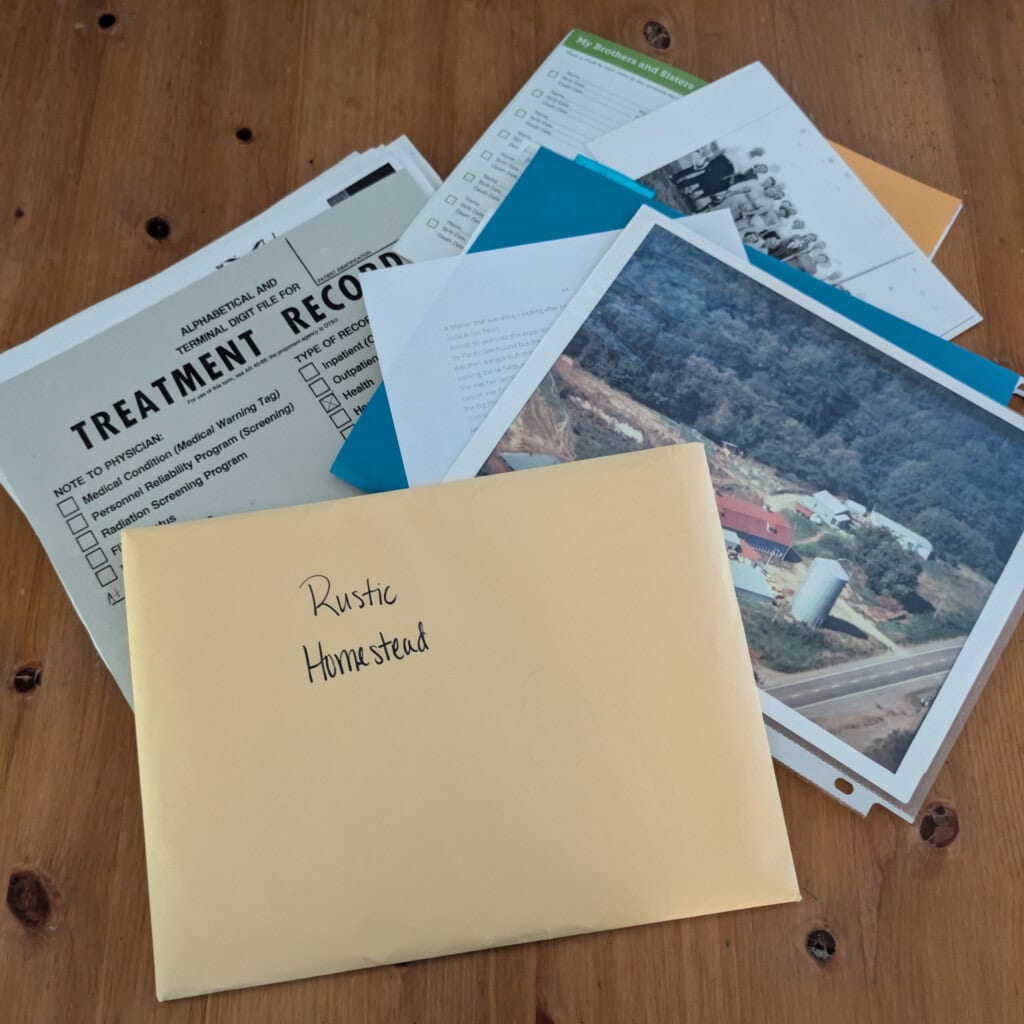
Do not forget to keep a copy of important legal documents such as a will, living trust, or other permanent records.
You should also request and store copies of all your medical records. It may take some time to track down older versions, but the effort is worth it. In our family, due to my disability, we even have the actual scan records & images from any x-rays and MRI’s I have had.
Most long-term records change slowly, so these records are quick to enter the data, and verify it once a year or so.
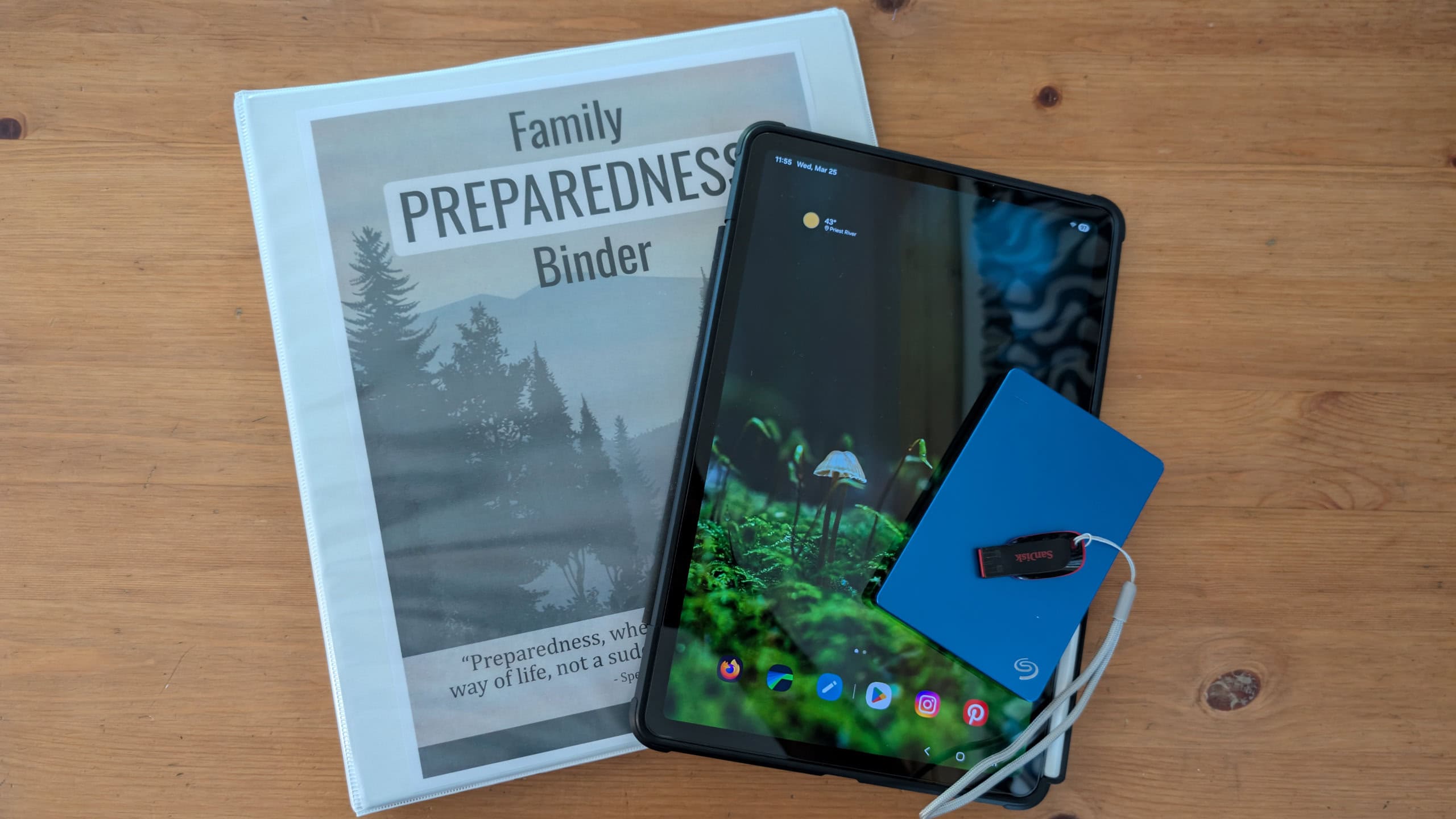
For a complete list of critical documents, plus many other helpful checklists, pick up a copy of our Family Preparedness Binder. Make sure you keep a digital copy of your completed binder in your vault as well.
Homestead security records
Running a homestead generates more records. We end up with animal registration certificates, land surveys, farm account ledgers, and even animal treatment records.
In an emergency, having access to your livestock records can help you prove you are the legal owner. It can also help with getting your animals into a safe location.
Often times proof of animal health will be required to house your animals at a relocation site, such as your local county fairgrounds. Being able to prove they are in good health with records from your digital vault keeps you from worrying about having the right papers.
These records change often. Think about how often you have animals born, purchased, sold, or slaughtered. Plan to visit this category once a month to keep the records current.
Human legacy records
Every day we take a photo or create a journal entry, we are contributing to our legacy. Documents and information to pass down to our posterity. If they are all destroyed in a house fire, what are we leaving behind?
Keeping digital copies of journals, family photos, even kid’s drawings is important. You can never get back that ‘family portrait’ your five-year-old created last week again should something happen to it.
Family history and our genealogy records are something we should safeguard and pass down to our children. My kids will never directly know their great-great grandparents, but they can know about them through written history.
Scan and store these items once and forever. Years ago, storage space was a premium cost, but today, you can store millions of photos for a fraction of the cost. I give you permission to be a digital packrat when it comes to family history and photos.
Converting your family documents to digital
Starting at zero can seem like you have a mountain of paper in front of you. So many documents to find, scan, and store. But there are a few easy ways to get out of the darkness and see the light at the end of your tunnel.
30 minutes a week avoids overwhelm
Years ago, when we decided to go digital, I remember spending hours and hours in a few short weeks trying to scan every piece of paper in the house. It was a rotten experience. One that I don’t want you to share.
Instead of treating this like a mountain to climb, let’s treat it like a nightly stroll around the block.
Set a timer and work for 30 minutes a week. Gather a stack of documents, scan & name them, complete your backups and sign off. If 30 minutes is too much, go for 15. All that matters is that you make small consistent efforts.
I recommend starting with the long-term documents. These will be your most critical and often labor intensive to collect and store.
The right tools for the job
Have you ever tried to remove a Phillips-head screw with a flat-head screwdriver? It’s no fun and leaves you with a stripped screw if you are not careful. Digitizing your documents can feel the same without the right tools in your arsenal.
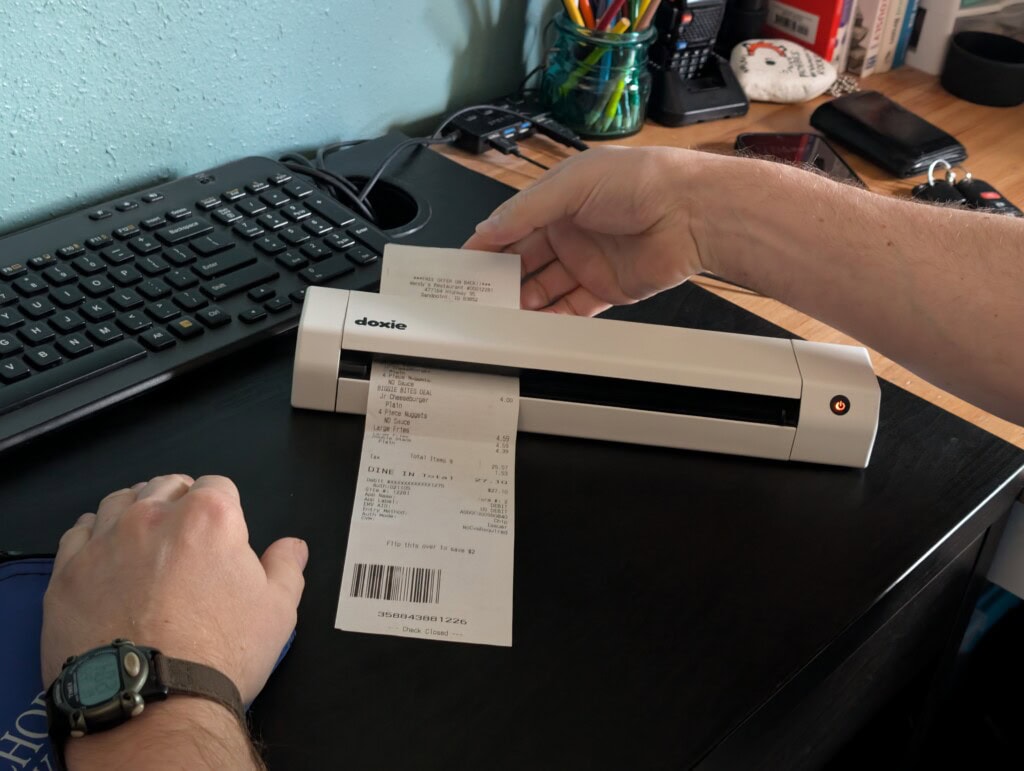
Today there are so many options available to convert your documents to digital. You are no longer trapped to a desktop computer and a wired scanner. But with options comes confusion, so let’s clear that up.
Portable Scanners
These are normally battery powered and can scan anything from receipts to letter size papers. Many save to an SD card, keeping you mobile. I recommend sticking with name brands such as Brother, HP, Epson, or our personal favorite, the Doxie Scanner. The prices range anywhere from $100 to $300 typically, depending on features.
Try to find a scanner with a high resolution. And avoid cheap handheld models which will produce uneven results. You want something that does the scanning when you insert the sheet.
Phone Apps
Most newer phones have amazingly good cameras on them. With the right phone app, you can simply point and shoot to scan documents. This goes quickly and uses the tools (your phone) that you already have for a low-cost start.
Be cautious of AI enhancement features. Since you will be scanning private data, you want something that does not send you raw scans to the cloud to refine or edit them.
Commercial Scanning Services
If you decide the mountain is far too large to tackle on your own, there are commercial scanning services available. This would be my personal last resort, and I would try to stick with someone local.
These services are best utilized for family history, old photos, and general documents. I am not sure how comfortable I would feel shipping my private medical or important documents to these services. You never know what will happen, including during transit.
Document Naming Conventions
When learning how to digitize vital records, the most overlooked step is the naming convention. It’s important to start with a naming strategy and stick with it. This will make your new library of documents easy to use and give you the ability to quickly locate files.
Many scanners and phone apps use a general name like DSC_34522.jpg. With file names like that, you have to open everything to find a single thing. Instead, I recommend creating folders on your computer by document type, such as ‘Family History’ or ‘Insurance’ and naming the files inside by item, such as YEAR – Birth Certificate – NAME.jpg.
In the past there was some debate on the use of dashes and spaces. Older machines could not handle the spaces and could jam with lots of files in a single folder. Most systems can handle these without issue now.
Whatever you choose, be consistent and do not change it part way through, or you will have to go back and redo a lot of your work.
Start your preparedness in 5 minutes
A simple 3-2-1 backup strategy
Your digitization efforts will quickly be for nothing if you choose not to backup the data you are scanning. We recommend a 3-2-1 backup strategy for all digital items (and your computers, too!) so you can ensure all your data says safe.
3 Data Copies
A good backup strategy keeps a copy in multiple locations. Your first location is always on your device or computer. This is your working directory. Changes made here are replicated to your secondary locations.
The second location is a local hard drive or USB thumb drive, like this 512GB Samsung USB drive, which works on phones, tablets and computers. Unlike when I was growing up, thumb drives have grown from a simple 8mb to massive 1TB drives that can hold as much as most computers. Some modern thumb drives even include protection that will lock the drive to read only forever if something should go wrong, allowing you to move data off to a replacement before complete failure occurs.
The last location is remote. Cloud services or a second drive stored in a bank vault or friend/family member’s house. This third copy protects your data in case something happens at your house, destroying your computer and secondary copy.
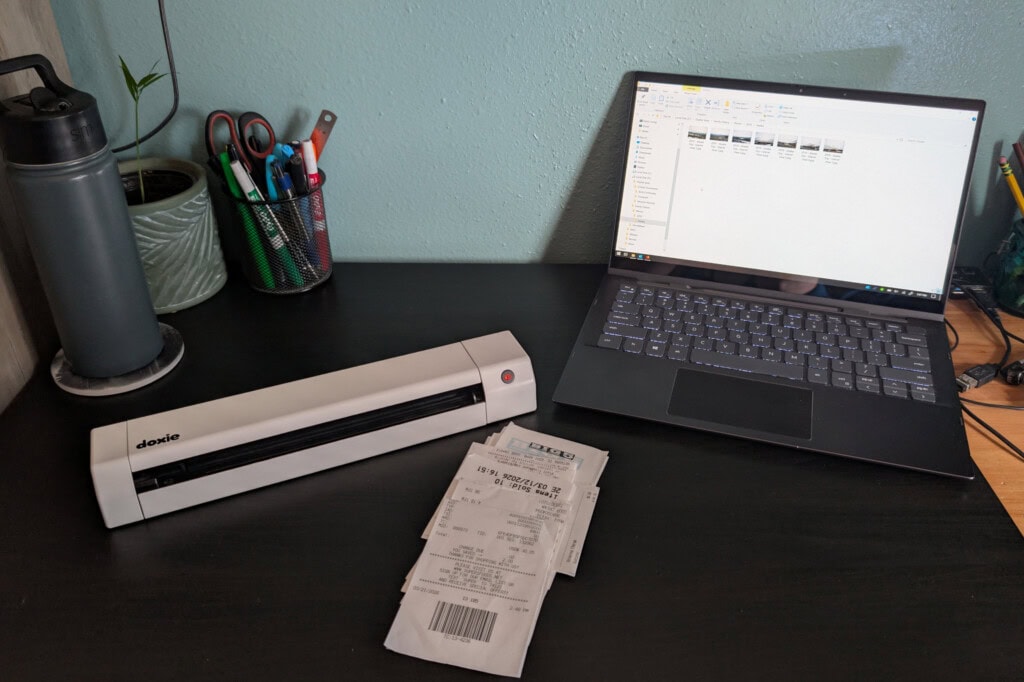
All copies of the data should be encrypted. Thumb drives and external hard drives can be encrypted by your computer, keeping the data secure when it’s out of your hands. Cloud services should be trusted and use encryption during transfer plus while the data is at rest.
IMPORTANT: Back up your encryption key or your data will be lost forever without it.
2 media formats
While we are moving to digital, it’s important to keep the paper copies of key documents. Many government organizations will only accept originals. Keep them in a secure fire-proof safe and use the digital (or photocopied) versions whenever you can.
Photos of family members can be printed for display around the house, knowing you have a good copy in your digital vault.
1 Offsite
Your offsite version is perhaps your most important. This is what keeps your vault safe even when your local world goes sideways.
Let me give you an example. Years ago, the company I worked for had me traveling around. Right after getting back from a trip, my work laptop was stolen, along with my computer bag. Inside the computer bag was my secondary backup. I wanted to ensure I could switch out computers if something happened to my laptop.
However, my third tier backup was stored in a bank vault the company paid for. A quick trip to the bank, a fresh computer and I was back in business. Almost no data was lost.
Your third tier protects you from theft, fire, floods, hackers, and so many other situations.
A binder copy – Your optional go-bag addon
Keeping an encrypted USB for your emergency binder ensures your data is as portable as your paper. With a copy of the data inside your grab-and-go binder, you are ready to leave without trying to remember to grab a drive that hooked to your computer.
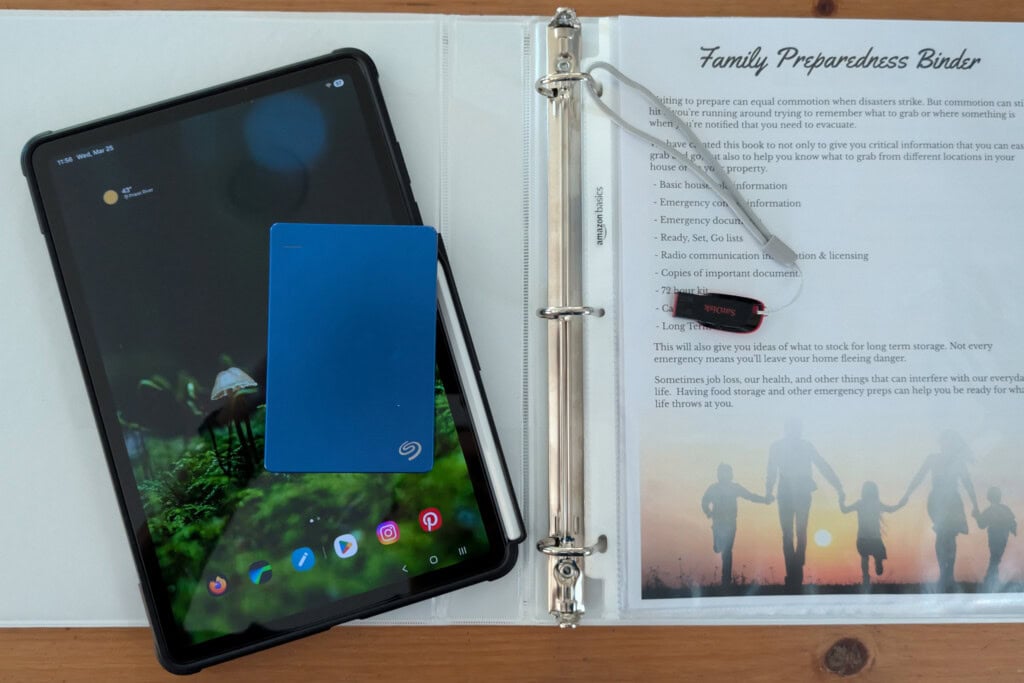
Just don’t forget to update it when you make changes!
A quick note on versioning
Most backup software will give you the option to create versions. These are copies of the original that are kept for a period of time after you make a change. I strongly recommend enabling this feature when available. For a little extra storage space, you gain piece of mind if you accidentally change the wrong file, or something gets damaged.
Digital document maintenance
Even once you get over your mountain, you still need to put in small amounts of time to keep up on your digital library. New documents will need to be added, or old ones will be replaced as they age out.
Records like insurance cards, drivers’ licenses, and medical information will change every 6 months to few years. If you go really deep, journals, receipts and bank ledgers could change daily.
To keep from being overwhelmed with constant scanning, I recommend setting aside time in your schedule. Block out monthly time to do a quick 15-30 minutes on regular changing items, and a longer block at least once each year to review everything and purge any out of date information.
Make sure you rotate any passwords if you choose to keep a password file in your vault. And don’t forget to check your external drive health, swapping it out if anything looks questionable.
Family preparedness exists beyond paper
Paper is a great foundation. Most of the documents we have are already there. Yet the modern age has introduced technology to the mix. Family photos, medical records, and our very history is tied up in computers.
Sadly, many people do not take the time to create a strong backup of not just physical documents, but their digital lives. Stories of how I lost everything and don’t even have pictures of my kids abound. It even happened to us when a device failed unexpectedly!
True family preparedness covers all the bases and ensures no matter what happens, you’re ready for it. While starting in the middle with document scanning and a digital vault is good, I always recommend you prepared your family physically first. If you are not sure where to begin, check out our guide on building a resilient homestead or planning for family safety during an emergency.